Shake-to-Roll Digital Dice
Shake it or tap the button and a little screen rolls a fair 1 to 6.
Try it
Behavior simulation: shows what it should do. It does not run the code.
Try this: Press the roll button or drag Shake strength above 60% and watch the numbers flicker, slow down and land on a dice face.
Controls
- Roll button
- Shake strength
- Battery level
What it does
- Screen
- Screen light
- Dice number
- Status
- Shake detected
- Low battery symbol
- Battery left
What it does
A palm-sized box with a small bright screen on top and one big button. When you shake it (a motion sensor inside notices) or press the button, the screen flickers through numbers like a rolling die, slows down, then lands on a random number from 1 to 6, shown as classic dice dots. It runs on three AAA batteries and switches itself to sleep when nobody touches it, so the batteries last a long time.
Try it above: Press the roll button or drag Shake strength above 60% and watch the numbers flicker, slow down and land on a dice face.
Safety
- Uses 3 AAA batteries: keep the battery door screwed shut so small children cannot get at the batteries
- Small parts inside the case could be a choking risk if the case is broken open by a young child
- Throwing it like a real die could crack the screen or case and hurt someone nearby
What’s inside
15 parts. We buy, make and put these together for you.
Brain
Runs the program and makes the decisions.
- Raspberry Pi Pico (RP2040)1×
$4.60
The small brain that reads the button and shake sensor, picks the random number and draws the dice on the screen.
- 21 × 51 × 4 mm
- Firmware: MicroPython
- Battery sense: Uses its built-in VSYS voltage reading (GP29) to spot low batteries
- Runs on: 1.8 to 5.5 V
- Draws: about 25 mA
list price, checked Oct 5, 2026 at SparkFunView
Senses
Measures the world around it.
- MPU-6050 accelerometer + gyro (6-DoF)1×
$12.95
Feels when the dice is shaken and wakes the board up.
- 26 × 18 × 5 mm
- Bus: I2C, address 0x68
- Wake: INT pin signals motion to the board
- Runs on: 3 to 5.5 V
- Draws: about 3.9 mA
list price, checked Oct 5, 2026 at AdafruitView
Controls
What you press, turn or flip.
- Panel-mount push button, 16 mm1×
$0.95
The big button you press to roll the dice.
- 18 × 18 × 29 mm
- Pullup: Board's built-in pull-up used
- Runs on: 0 to 12 V
- Weight: 4.6 g
list price, checked Oct 5, 2026 at AdafruitView - Mini slide switch, SPDT, panel mount1×
$0.50
Turns the dice fully on or off.
- 4 × 16 × 8 mm
- Rating: 0.5 A 12 V
- Body: 12 x 6 x 6
estimate
Lights, sound and screen
How it tells you what it is doing.
- SH1106 1.3" OLED, 128x64, I2C1×
$10.98
Shows the rolling animation, the dice dots and the low-battery symbol.
- 35 × 30 × 10 mm
- Bus: I2C, address 0x3C
- Size: 35 x 34 module
- Runs on: 3.3 to 5 V
- Draws: about 25 mA
list price, checked Oct 6, 2026 at AmazonView
Power
Where its energy comes from.
- 3 x AAA battery holder with leads1×
$1.50
Holds the three AAA batteries that power the dice (about 4.5 V).
- 37 × 47 × 6 mm
- Size: approx 37 x 47 x 12
- Voltage: 4.5 V nominal
estimate - AAA alkaline batteries3×
$1.50
Ship ready to go so the dice works straight out of the box.
- 34 × 45 × 11 mm
- Type: AAA alkaline 1.5 V
estimate
Small electronics and wiring
Resistors, connectors and cables that join it all up.
- Electrolytic capacitor 100 µF 25 V1×
$7.99
Smooths the battery power so the screen and board don't glitch.
- 6 × 6 × 11 mm
- Placement: Across VSYS and GND
- Runs on: 0 to 25 V
Pack of 50, you use 1, the 49 spares are yours.
list price, checked Oct 6, 2026 at AmazonView - Hook-up wire 22 AWG solid core, 6 x 25 ft1 sets
$15.95
Short wires that connect the parts inside the case.
- 25 × 5.1 × 5.1 cm
- Use: About 1 m total used
- Weight: 340.7 g
list price, checked Oct 5, 2026 at AdafruitView - Heat-shrink tubing assortment1 packs
$4.95
Covers the wire joints so nothing can short out.
- 15 × 0.5 × 0.5 cm
list price, checked Oct 5, 2026 at AdafruitView
Body and structure
The case, frame and panels.
- 3D-printed case body1×
$2.00
The palm-sized box that holds everything, with a window for the screen and a hole for the button.
- 70 × 70 × 42 mm
- Size: 70 x 70 x 40
- Material: PLA, 2.4 mm walls, rounded corners
Made by usestimate - 3D-printed screw-shut battery door1×
$0.50
Closes the battery compartment with a screw so small children can't open it.
- 50 × 44 × 1 mm
- Material: PLA
Made by usestimate - Clear polycarbonate screen window1 sheets
$1.50
A tough clear cover that protects the screen from knocks.
- 30 × 61 × 0.3 cm
- Cut size: 40 x 30 piece from sheet
- Weight: 669 g
Made by usestimate
Fixings
Screws, bolts and ties that hold it together.
- Brass heat-set insert, M3 x 4 mm6×
$5.95
Strong metal threads in the plastic so screws hold firmly.
- 4 × 4 × 4 mm
Pack of 50, you use 6, the 44 spares are yours.
list price, checked Oct 5, 2026 at AdafruitView - M3 socket head screw (6-30 mm)8×
$9.99
Hold the lid, screen and battery door in place.
- 6 × 6 × 13 mm
- Length: 8 mm
Pack of 1120, you use 8, the 1112 spares are yours.
list price, checked Oct 5, 2026 at AmazonView
Parts total (15 lines)
$81.81
$74.31 from supplier list prices, $7.50 estimated. Preparation and shipping are added when you order.
How it goes together
The step-by-step instructions that come with your order, 3 steps. Try them here first.
Before you start
Shake-to-Roll Digital Dice goes together in 3 steps, about 16 min in all. No soldering and no coding.
Already done in our workshop
- Print the case and battery door
- Fit the threaded inserts and window
- Mount the button, switch and battery holder
- Wire the electronics
- Load the dice program
- Screw everything in and close up
- Test every feature
- Fit the batteries and close the door
Have these ready
- Hex key (included)
- M3 hex key (included)
3 steps
Code
The code it runs2 files, 363 lines. We load it onto the board for you.
Uses: machine (built-in MicroPython), framebuf (built-in MicroPython), random (built-in MicroPython), sh1106.py (included driver file)
# =====================================================================# TINKERLY ELECTRONIC DICE - firmware for the Raspberry Pi Pico# =====================================================================# What this program does, in plain words:# * Press the big button OR shake the box firmly and the screen shows# a 'rolling die' that flickers fast, slows down over about 1 second,# then lands on a random number from 1 to 6, drawn as dice dots.# * While a roll is happening, extra presses/shakes are ignored.# * The result stays on screen for 30 seconds, then the screen turns# off and the dice dozes (low power). Any press or shake wakes it# and starts a new roll straight away.# * If the batteries are getting low, a small battery symbol appears# in the top-right corner.# * Every roll is fair: numbers come from the Pico's hardware random# source, so 1..6 each come up about equally often.## Wiring used (must match the build sheet):# GP4 = I2C data (screen + motion sensor) GP5 = I2C clock# GP2 = motion sensor 'I felt movement' signal (INT)# GP3 = roll button (other side to GND)# Battery voltage is read inside the Pico on its built-in VSYS/3 input# (ADC channel 3, GP29) - no extra wire needed.## Files: main.py (this file) + sh1106.py (small screen driver).# ===================================================================== import timeimport osimport randomimport structimport machinefrom machine import Pin, I2C, ADCfrom sh1106 import SH1106_I2C # ---------------- Settings you might tweak ----------------ROLL_MS = 1000 # how long the rolling animation lastsSHOW_MS = 30000 # how long the result stays before sleepingSHAKE_LIMIT_G = 0.9 # how far from normal gravity counts as a firm shakeREARM_MS = 600 # after a roll, ignore shakes this long (box still wobbling)DEBOUNCE_MS = 30 # button contact settle timeBATT_FULL_V = 4.5 # 3 fresh AAA alkaline cellsBATT_EMPTY_V = 3.3 # below this the Pico/screen start to struggleLOW_PCT = 20 # show battery symbol below this percentSLEEP_NAP_MS = 50 # while asleep, wake up this often to check inputs # ---------------- Pins and buses ----------------i2c = I2C(0, sda=Pin(4), scl=Pin(5), freq=400000)button = Pin(3, Pin.IN, Pin.PULL_UP) # pressed = reads 0motion_int = Pin(2, Pin.IN, Pin.PULL_DOWN) # MPU-6050 drives it high on motionvsys_adc = ADC(3) # VSYS / 3 inside the Pico # ---------------- Fair random numbers ----------------# Seed from the RP2040 hardware random source so every power-on differs.try: random.seed(int.from_bytes(os.urandom(4), 'little'))except Exception: random.seed(time.ticks_us()) def fair_face(): # randint(1, 6) gives each face an equal chance return random.randint(1, 6) # ---------------- Motion sensor (MPU-6050 at address 0x68) ----------------MPU = 0x68mpu_ok = False def mpu_write(reg, val): i2c.writeto_mem(MPU, reg, bytes((val,))) def mpu_setup(): global mpu_ok try: mpu_write(0x6B, 0x80) # reset the chip time.sleep_ms(100) mpu_write(0x6B, 0x01) # wake up, use stable clock mpu_write(0x6C, 0x00) # all sensors on mpu_write(0x1A, 0x03) # gentle smoothing of readings mpu_write(0x1C, 0x09) # +/-4 g range, high-pass for motion detect mpu_write(0x1F, 100) # motion-detect threshold (~200 mg steps) mpu_write(0x20, 2) # motion must last ~2 ms mpu_write(0x37, 0x20) # INT pin: active high, stays on until cleared mpu_write(0x38, 0x40) # enable the motion interrupt mpu_ok = True except OSError: mpu_ok = False # no sensor: button still works def mpu_clear_int(): # Reading the status register clears the latched INT signal if mpu_ok: try: i2c.readfrom_mem(MPU, 0x3A, 1) except OSError: pass def mpu_low_power(on): # In sleep: sensor checks for motion a few times per second only if not mpu_ok: return try: if on: mpu_write(0x6C, 0x47) # wake 5x/s, gyros off mpu_write(0x6B, 0x28) # cycle mode, temperature sensor off else: mpu_write(0x6B, 0x01) mpu_write(0x6C, 0x00) except OSError: pass def shake_felt(): # True when acceleration differs strongly from normal gravity (1 g) if not mpu_ok: return False try: x, y, z = struct.unpack('>hhh', i2c.readfrom_mem(MPU, 0x3B, 6)) except OSError: return False g = 8192.0 # counts per g at +/-4 g mag = ((x * x + y * y + z * z) ** 0.5) / g return abs(mag - 1.0) > SHAKE_LIMIT_G # ---------------- Battery ----------------low_battery = False def battery_percent(): total = 0 for _ in range(8): # average a few readings total += vsys_adc.read_u16() volts = (total / 8) * 3.3 / 65535 * 3 pct = (volts - BATT_EMPTY_V) / (BATT_FULL_V - BATT_EMPTY_V) * 100 return max(0, min(100, pct)) def update_battery(): # small dead-band so the symbol does not flicker on and off global low_battery p = battery_percent() if p < LOW_PCT: low_battery = True elif p > LOW_PCT + 5: low_battery = False # ---------------- Screen drawing ----------------oled = SH1106_I2C(128, 64, i2c)oled.contrast(255) # bright DIE_X, DIE_Y, DIE_S = 38, 11, 52 # dice square position and size def fill_circle(cx, cy, r): for dy in range(-r, r + 1): dx = int((r * r - dy * dy) ** 0.5) oled.hline(cx - dx, cy + dy, 2 * dx + 1, 1) def draw_battery_icon(): # tiny empty battery in the top-right corner oled.rect(114, 1, 11, 7, 1) oled.fill_rect(125, 3, 2, 3, 1) oled.fill_rect(116, 3, 2, 3, 1) # one small bar = nearly empty def draw_screen(title, face): oled.fill(0) oled.text(title, 0, 0, 1) if low_battery: draw_battery_icon() # dice outline (double line for a chunky look) oled.rect(DIE_X, DIE_Y, DIE_S, DIE_S - 0, 1) oled.rect(DIE_X + 1, DIE_Y + 1, DIE_S - 2, DIE_S - 2, 1) a, b, c = 12, 26, 40 # dot positions inside the square spots = { 1: [(b, b)], 2: [(a, a), (c, c)], 3: [(a, a), (b, b), (c, c)], 4: [(a, a), (c, a), (a, c), (c, c)], 5: [(a, a), (c, a), (b, b), (a, c), (c, c)], 6: [(a, a), (c, a), (a, b), (c, b), (a, c), (c, c)], } if face in spots: for (sx, sy) in spots[face]: fill_circle(DIE_X + sx, DIE_Y + sy, 5) else: oled.text('?', DIE_X + 22, DIE_Y + 22, 1) oled.show() # ---------------- Button with debounce ----------------btn_stable = 1btn_last_raw = 1btn_changed_at = 0 def button_pressed_edge(now): # returns True once, at the moment the button goes down global btn_stable, btn_last_raw, btn_changed_at raw = button.value() if raw != btn_last_raw: btn_last_raw = raw btn_changed_at = now if raw != btn_stable and time.ticks_diff(now, btn_changed_at) >= DEBOUNCE_MS: btn_stable = raw return raw == 0 return False # ---------------- Main state machine ----------------# phases: 'ready' (just switched on), 'rolling', 'showing', 'sleep'phase = 'ready'face = 0roll_start = 0next_frame = 0shown_at = 0last_battery_check = 0 def start_roll(now): global phase, roll_start, next_frame phase = 'rolling' roll_start = now next_frame = now def go_to_sleep(): global phase phase = 'sleep' oled.fill(0) oled.show() oled.poweroff() mpu_low_power(True) mpu_clear_int() def wake_up(): oled.poweron() mpu_low_power(False) mpu_clear_int() mpu_setup()update_battery()now = time.ticks_ms()shown_at = nowdraw_screen('Shake or press', 0) while True: now = time.ticks_ms() pressed = button_pressed_edge(now) # ---- Asleep: nap, then check button / motion signal ---- if phase == 'sleep': if pressed or button.value() == 0 or motion_int.value() == 1: wake_up() update_battery() start_roll(time.ticks_ms()) continue try: machine.lightsleep(SLEEP_NAP_MS) # low-power nap except Exception: time.sleep_ms(SLEEP_NAP_MS) continue # ---- Awake: look for a roll request ---- shaken = False if phase != 'rolling': if phase == 'ready' or time.ticks_diff(now, shown_at) > REARM_MS: shaken = shake_felt() mpu_clear_int() if (pressed or shaken) and phase != 'rolling': start_roll(now) # presses during a roll are simply ignored # ---- Rolling animation: fast flicker that slows down ---- if phase == 'rolling': elapsed = time.ticks_diff(now, roll_start) if elapsed >= ROLL_MS: face = fair_face() # the real, fair result phase = 'showing' shown_at = now draw_screen('You rolled ' + str(face), face) mpu_clear_int() elif time.ticks_diff(now, next_frame) >= 0: new = fair_face() while new == face: # always visibly change new = fair_face() face = new draw_screen('Rolling...', face) frac = elapsed / ROLL_MS # gap between frames grows from 40 ms to 200 ms = slowing down next_frame = time.ticks_add(now, int(40 + 160 * frac * frac)) # ---- Result / ready screen timeout -> sleep ---- elif phase in ('showing', 'ready'): if time.ticks_diff(now, shown_at) >= SHOW_MS: go_to_sleep() continue # ---- Check batteries every 5 s (not during the animation) ---- if phase != 'rolling' and time.ticks_diff(now, last_battery_check) >= 5000: last_battery_check = now was_low = low_battery update_battery() if low_battery != was_low: if phase == 'showing': draw_screen('You rolled ' + str(face), face) else: draw_screen('Shake or press', 0) time.sleep_ms(10) # short pause; keeps the loop responsive # Small driver for the SH1106 1.3" 128x64 OLED screen over I2C.# It keeps a picture in memory (using MicroPython's built-in framebuf# drawing tools) and sends it to the screen when show() is called. import framebuf class SH1106_I2C(framebuf.FrameBuffer): def __init__(self, width, height, i2c, addr=0x3C): self.width = width self.height = height self.i2c = i2c self.addr = addr self.pages = height // 8 self.buffer = bytearray(self.pages * width) super().__init__(self.buffer, width, height, framebuf.MONO_VLSB) self.init_display() def cmd(self, c): self.i2c.writeto(self.addr, bytes((0x80, c))) def init_display(self): for c in (0xAE, # display off while setting up 0xD5, 0x80, # clock 0xA8, 0x3F, # 64 rows 0xD3, 0x00, # no vertical offset 0x40, # start line 0 0xAD, 0x8B, # internal power pump on 0xA1, # mirror columns (normal orientation) 0xC8, # flip rows (normal orientation) 0xDA, 0x12, # pin layout 0x81, 0xCF, # brightness 0xD9, 0x22, # pre-charge 0xDB, 0x35, # voltage level 0xA4, # show memory contents 0xA6): # normal (not inverted) self.cmd(c) self.fill(0) self.show() self.poweron() def poweroff(self): # screen off and its internal power pump off = tiny standby current self.cmd(0xAE) self.cmd(0xAD) self.cmd(0x8A) def poweron(self): self.cmd(0xAD) self.cmd(0x8B) self.cmd(0xAF) def contrast(self, value): self.cmd(0x81) self.cmd(value & 0xFF) def show(self): # The SH1106 memory is 132 wide; the visible 128 start at column 2 w = self.width for page in range(self.pages): self.cmd(0xB0 | page) self.cmd(0x02) self.cmd(0x10) start = page * w self.i2c.writeto(self.addr, b'\x40' + self.buffer[start:start + w]) 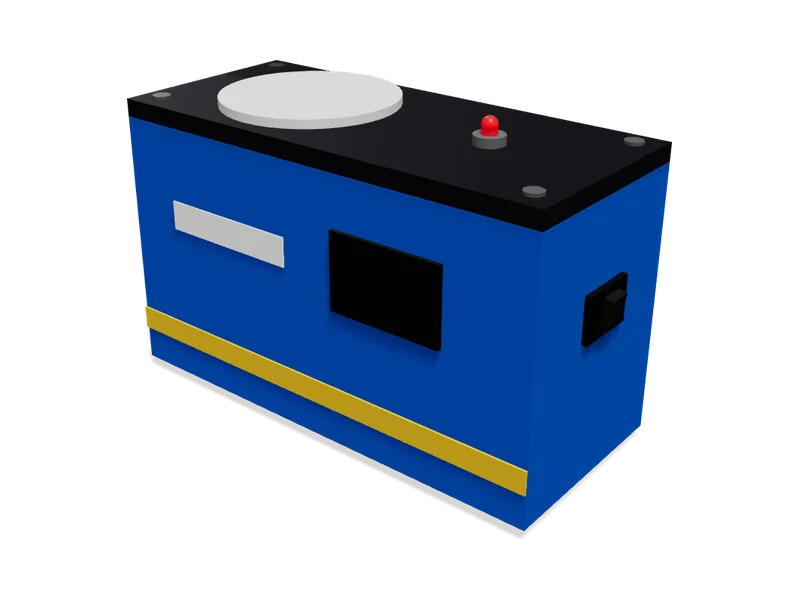
Comments
No comments yet
Sign in to comment. It is free.